
Step 1: Set Shortmarks as your Default Search Engine
Make Shortmarks your default search engine.Screencast
Here's a quick overview on how to use Shortmarks to speed up your web browsing.
Add a site to Shortmarks
To add a new site to Shortmarks, you need to replace the search phrase in the URL with %s.
For example, to add DuckDuckGo, first perform a search.
If we search for news, it produces the following URL: https://duckduckgo.com/?q=news.
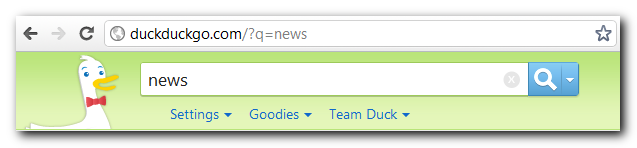
Replace news with %s to get https://duckduckgo.com/?q=%s. Add that URL as the DuckDuckGo search link, add a keyword (ddg for example), title and direct link (https://duckduckgo.com), then save.

Now you can type ddg in the address bar to visit DuckDuckGo, and ddg followed by a search phrase (for example: ddg weather) to go directly to the search results page for weather.
Launch sites with a bookmarklet
The Shortmarks Bookmark Launcher bookmarklet: sbl
Drag the sbl link above to your browser's toolbar, then click on it to launch the bookmarklet.
Instead of using the address or search bar, you can use the bookmarklet. It works like the Shortmarks search field or searching from within your browser, with one major feature: The SBL lets you launch bookmarklets.
Link Bundles
Link bundles let you specify several bookmarks with one keyword. All link bundles are prefixed with an exclamation mark (!) and you can retrieve a list of all your link bundles by doing a search for ! in Shortmarks. Because of issues with pop-up blockers, launching a link bundle will take you to a landing page where you can see all of the sites in the bundle that will be opened. Hit any key or click the "Open all links" button to open new tabs (or windows, depending on your browser). You need to allow popups for the domain or else the browser will only open up two pages. In Google Chrome, for instance, add[*.]shortmarks.com to the Allow list in Content settings > Popups.